

To ensure the reliability of the institution’s accounts, an update of the physical inventory is under way. Part of this inventory concerns the computer equipment assigned to staff. The goal is to ensure that the IT equipment assigned to a given person (recorded as fixed assets in the institution’s accounts) is still operational, in that person’s possession, and not missing from the inventory.
This inventory will also enable the IT resources unit to consolidate the list of hardware likely to be connected to the institution’s network, for IT security purposes.
All involved!
The list of IT hardware assigned to staff can be viewed via the GLPI application. Each staff member is asked to check this list by proceeding as follows:
- Log in to the ENT and click on the “Request assistance” menu (Figure 1).
- Consult the “My items” drop-down list – this is the list of computer hardware assigned to you.
- Check the information listed: check that the code indicated next to the type of hardware (screen, computer, phone, etc.) matches that indicated on the label placed on your hardware (figure 3).
- If you notice any inconsistency:
- In the “category” field, select “Inventory” (figure 4).
- In the “My items” field, select the hardware that poses a problem, then click the “Add” button (figure 5).
- Repeat this operation (b) for each item of hardware that poses a problem.
- In the “description” field (figure 6), indicate, for each item of hardware, the inconsistency that you have identified, for example:
- the hardware has been transferred to another person: please specify to whom;
- the hardware no longer exists: please request its removal from the inventory.
- If any hardware is missing from the list: please indicate the number of the hardware located on its label as well as the office number where it is installed, in the “description” field (figure 6)
- Once you have completed these steps, click the “Submit request” button.
If you do not see any inconsistencies, submit your request indicating “RAS” (i.e. Rien A Signaler – Nothing to report) in the description field (figure 6).
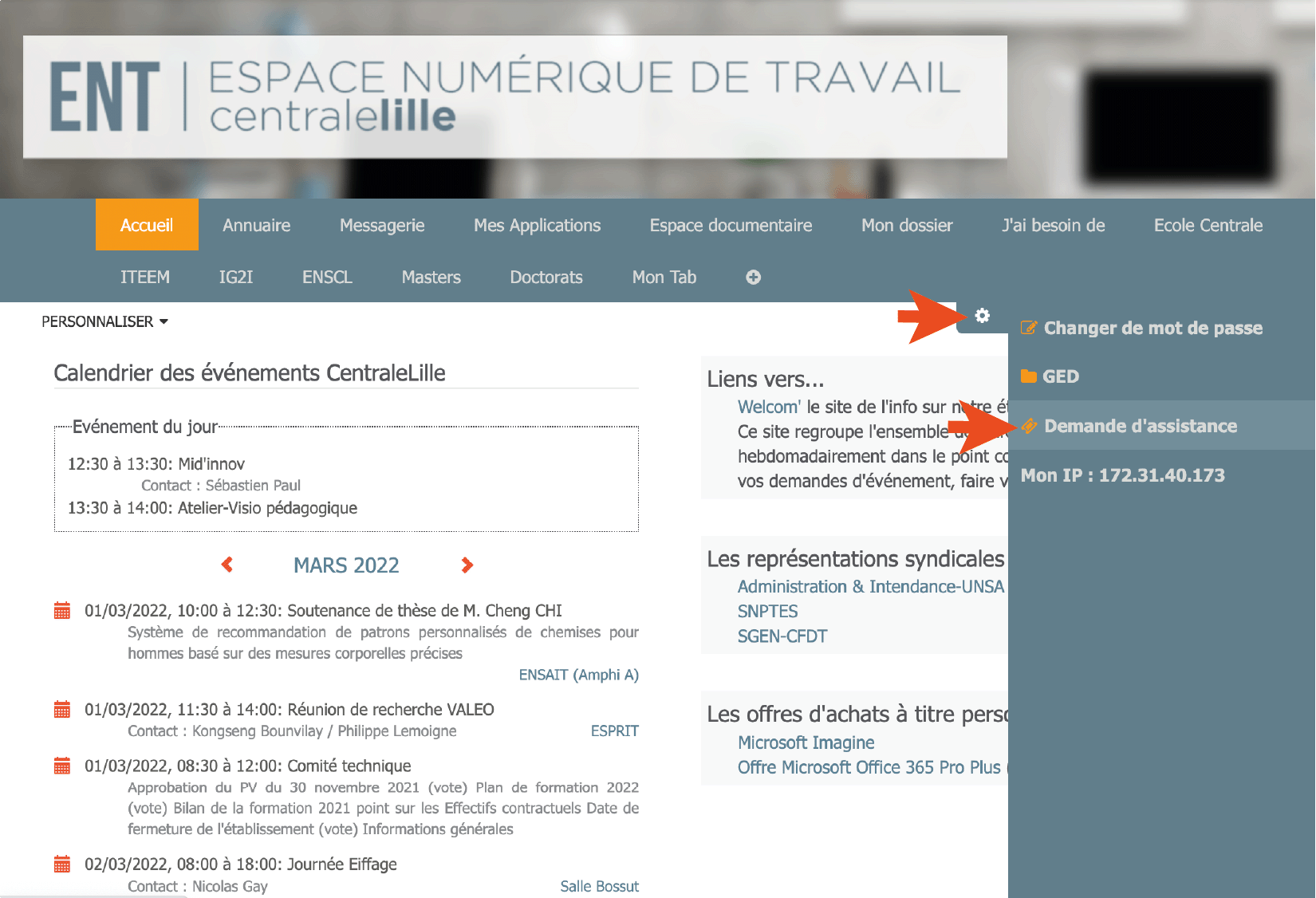
Figure 1
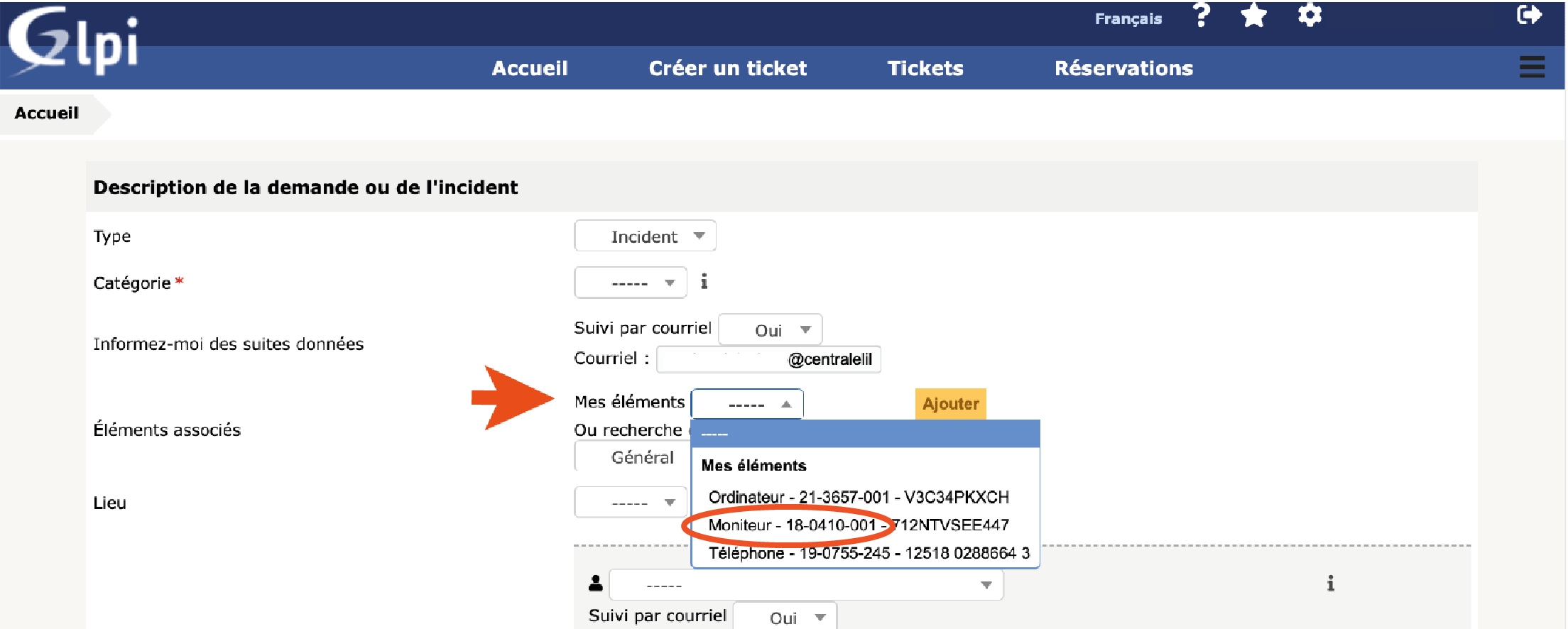
Figure 2
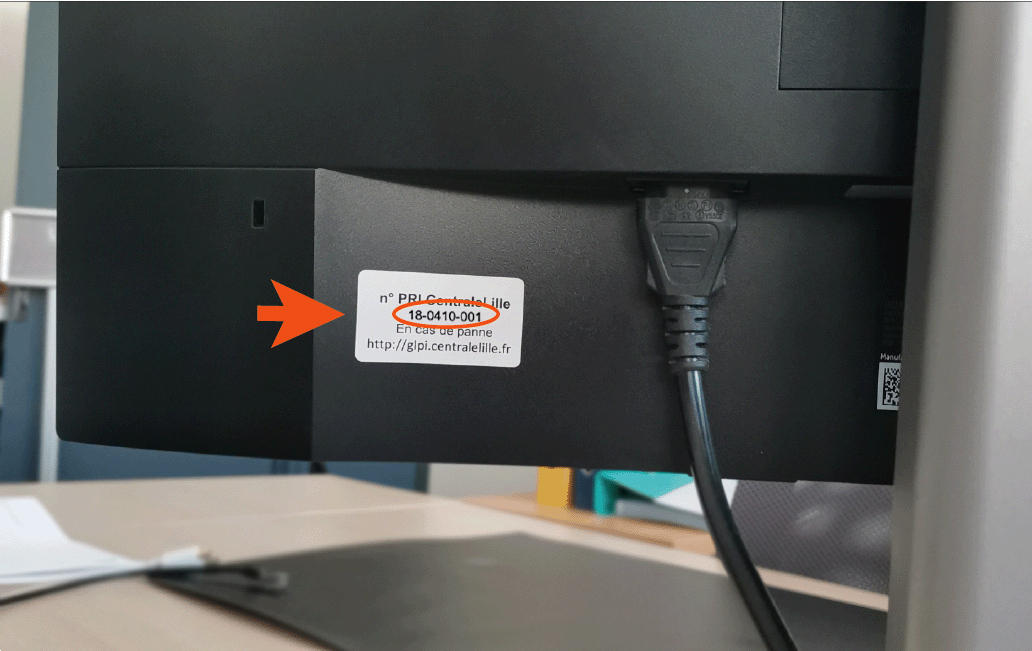
Figure 3
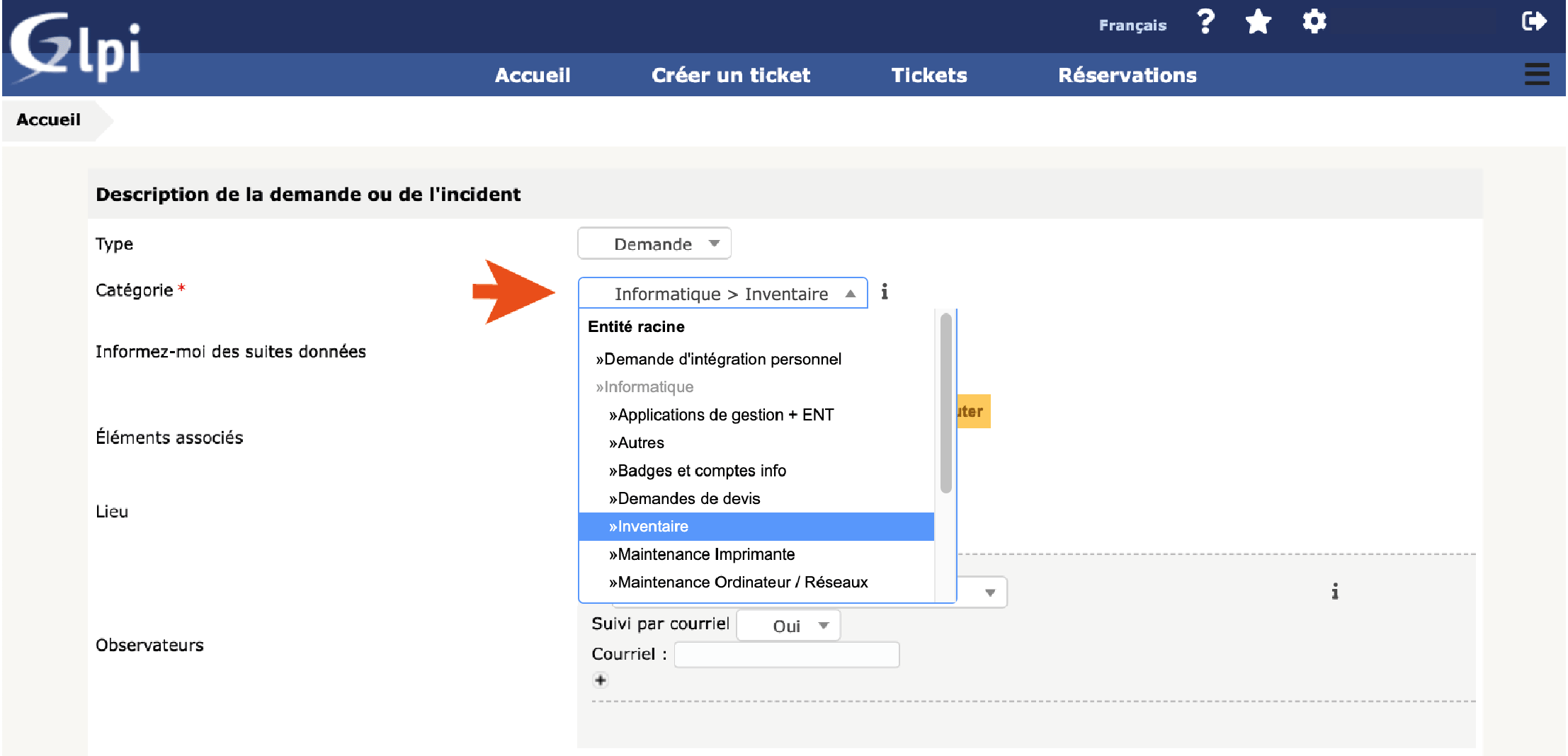
Figure 4
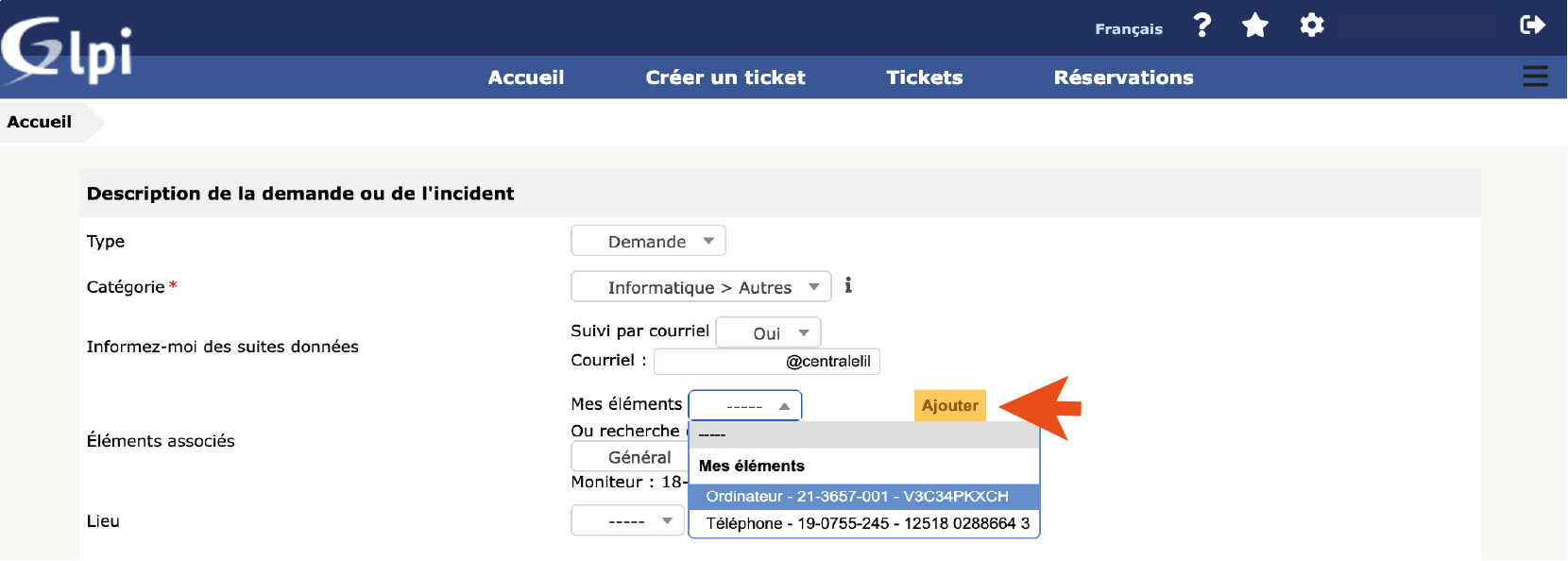
Figure 5
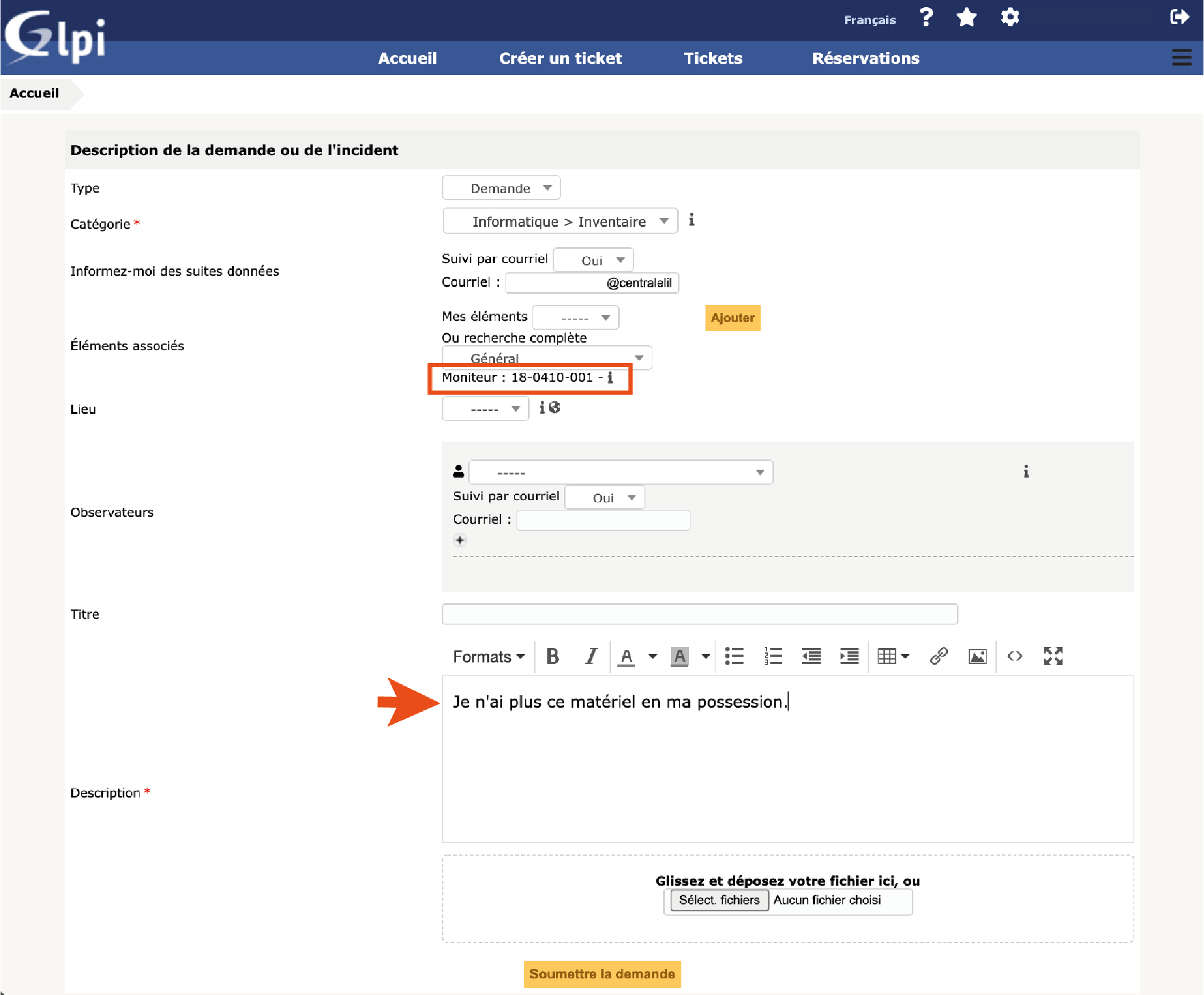
Figure 6